Use the publishing assistant
No more guessing where you are: the assistant lists the steps for each platform, checks your files for you and updates itself.
Where to find it
In your app's manager, open Publication, then Open the assistant. The assistant is accessible to the account manager.
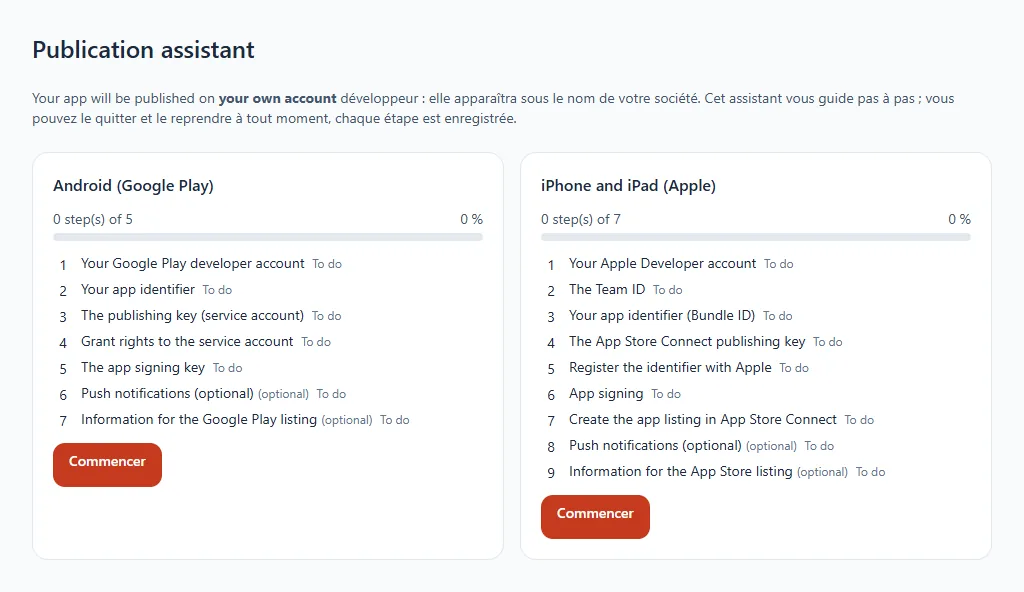
The summary
The assistant offers two paths: Android (Google Play) and iPhone and iPad (Apple). For each, you see the number of completed steps, a progress percentage and the status of each step (To do, Check in progress, completed…). Optional steps are marked.
A step
Each step explains what to do, with direct links to the Apple and Google websites.
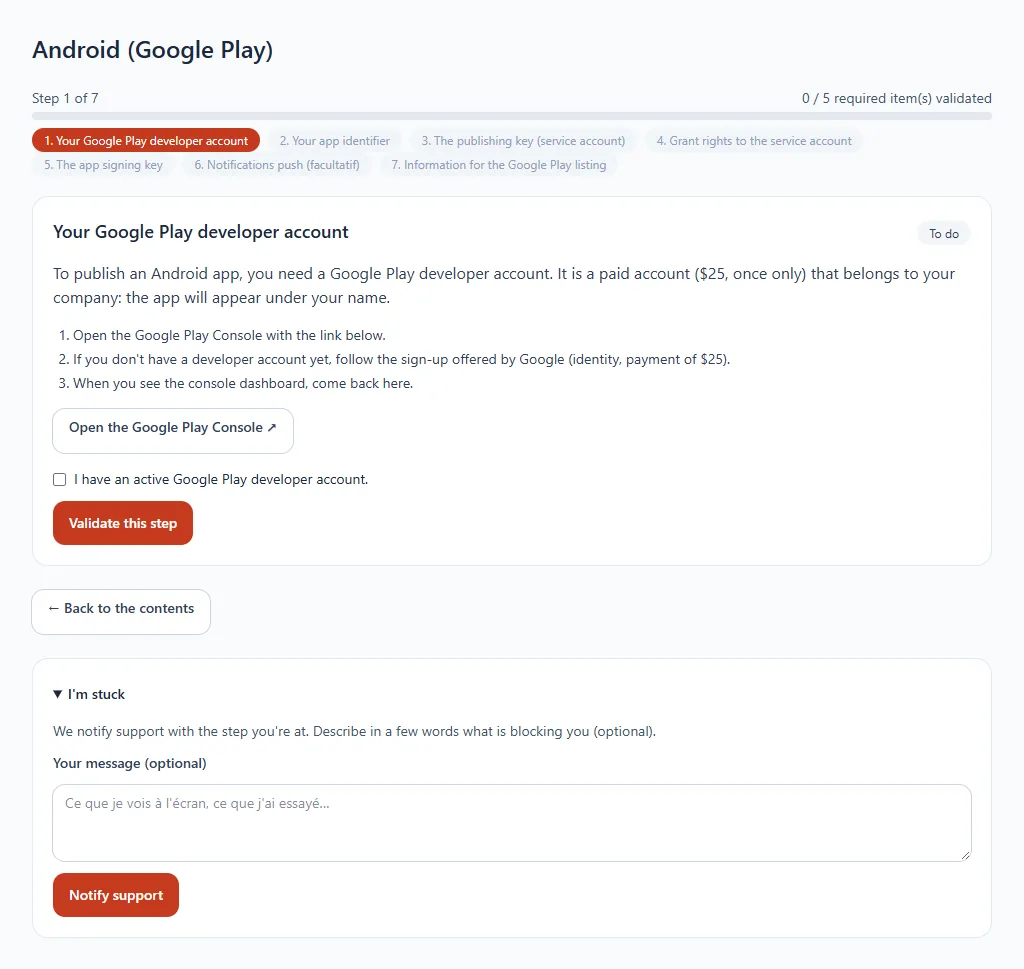
- Read the instructions and complete the task at the store.
- Enter the requested information or upload the file.
- Click Validate this step (or Check now when a check is offered).
- Go back to the summary whenever you like: each step is saved, so you can leave and resume at any time.
The steps
| Android (Google Play) | iPhone and iPad (Apple) |
|---|---|
| Google Play developer account | Apple Developer account |
| App identifier | Team identifier (Team ID) |
| Publishing key (service account) | App identifier (Bundle ID) |
| Service account rights | App Store Connect publishing key |
| Signing key | Registering the identifier with Apple |
| Push notifications (optional) | App signing |
| Information for the store listing (optional) | App listing in App Store Connect |
| Push notifications (optional) and information for the listing (optional) |
The detailed tutorials: Apple Developer and Google Play Console.
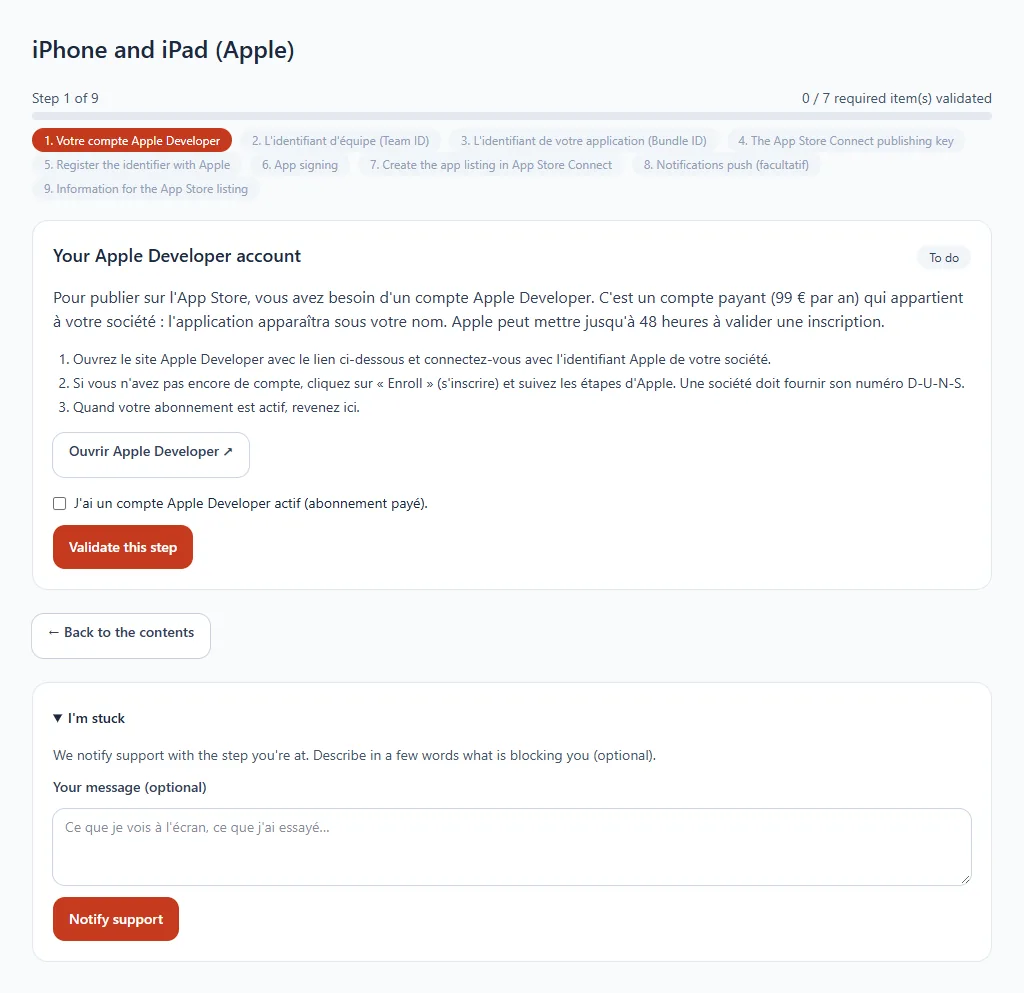
Stuck?
Under each step, I'm stuck lets you alert our support with the step you are at. Describe in a few words what is stopping you (optional) then click Alert support: we help you.
Your files are protected
The keys and files you upload are encrypted on our servers, are never displayed again and can be deleted at any time.