The track library
Your library is your radio's music reserve. Drop your tracks in: the AutoDJ broadcasts them without interruption, day and night.
What it is for
- Centralise your music and your jingles.
- Quickly find a track and correct its information.
- Prepare your playlists.
Where to find it
In the sidebar, under This radio, click Library. The Manage my library button on your radio's page leads to the same place.
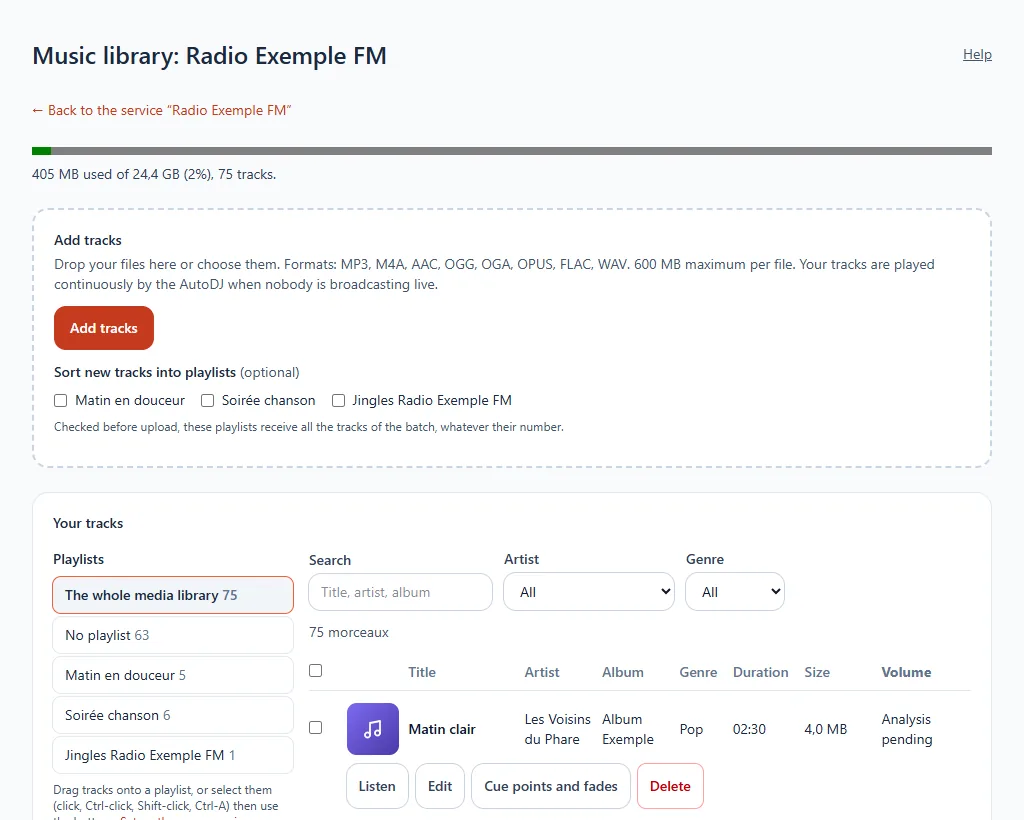
Add tracks
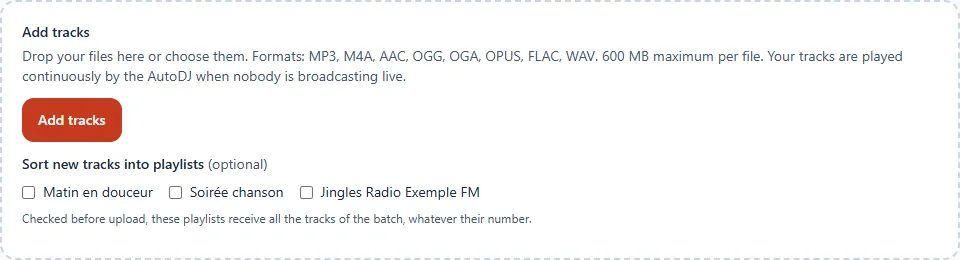
- Drag your files into the area provided, or click Add tracks to choose them.
- Accepted formats: MP3, M4A, AAC, OGG, OGA, OPUS, FLAC and WAV, 600 MB at most per file.
- Follow the progress: the tracks appear in the list as soon as they are received.
Uploading several files
Uploading starts as soon as you choose or drop your files: nothing asks for confirmation first. For a batch of several files, a summary and a counter show how far along the upload is, and the Stop after this file button lets you interrupt it. Keep the page open: closing it interrupts the upload, but the files already sent stay in your library.
When the whole batch has been processed, an Upload complete window shows the number of tracks added, the space added and the space you have left, with the list of any refused files (unsupported format, file too large, duplicate, not enough space). The Close button (or the Esc key) closes it.
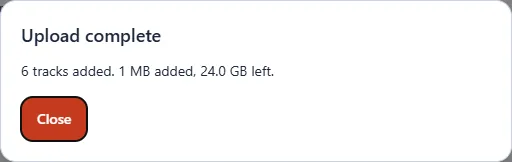
Screen readers announce this window when it opens. If you tick playlists before uploading, all the tracks in the batch are placed in them.
The panel checks your files on upload and ignores duplicates. A gauge at the top of the page shows the space used and the number of tracks.
No need to normalise
The volume of your tracks is harmonised automatically. The "Analysis pending" note in the Volume column disappears when the analysis is finished.
Find and organise
- Search by title, artist or album, and filter by artist, genre or playlist.
- Select several tracks (click, Ctrl-click, Shift-click, Ctrl-A) then add them to a playlist or delete them.
- Drag tracks onto a playlist in the left column, or use the buttons if you prefer.
- Create a new playlist directly from the left column.
Actions on a track
| Button | What it does |
|---|---|
| Listen | Plays a preview in your browser |
| Edit | Changes the title, artist, album and genre |
| Markers and fades | Opens the track editor |
| Delete | Removes the track from the library |
Playback order
In Playback order and volume, choose whether the AutoDJ plays your tracks at random or in the order they were added, then click Save the order.