Playlists
A playlist gathers tracks by mood: morning, evening, new releases... or jingles.
What it is for
Giving more or less room to certain tracks and preparing the time slots.
Where to find it
In the library (Playlists column) to create a playlist and fill it, or in Program the AutoDJ, Advanced settings section, to set it up. You can create up to 20 playlists.
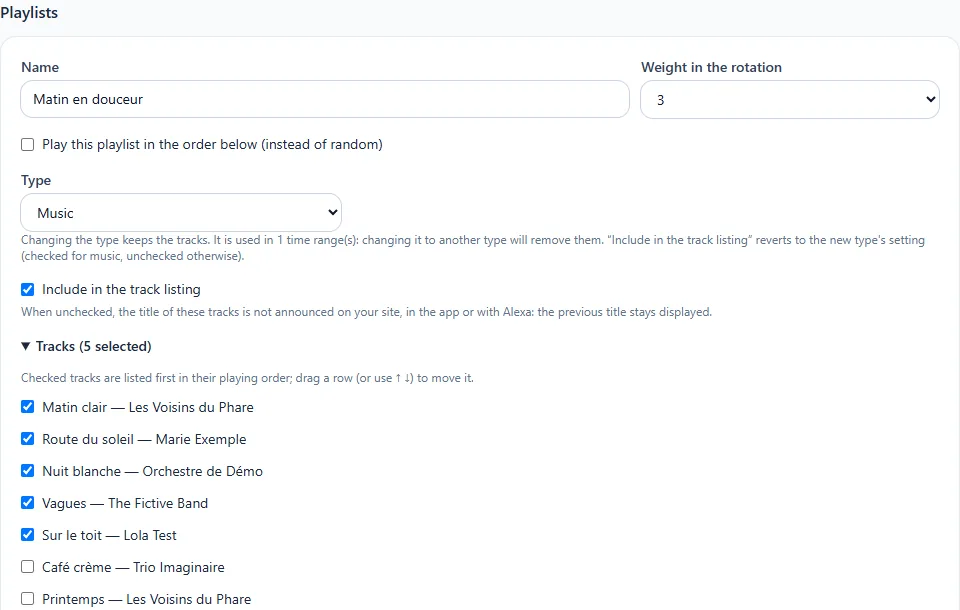
Step by step
- Enter the name and the type: Music, Jingles, Sung jingles, Top of the hour, Promos, Ad intro stings, Ad outro stings or Advertisements.
- Click Create the playlist.
- Tick the tracks that are part of it.
- For a music playlist, set its weight in the rotation from 1 to 10: the higher it is, the more often it plays.
- Click Save this playlist.
Useful settings
- Tick Play this playlist in order to broadcast it in the order of the list rather than at random; drag the rows (or use ↑ ↓) to reorder them.
- Include in metadata: ticked, the title of the tracks in this playlist is announced on your website, in the app and with Alexa. Unticked, these titles are not announced and the previous title stays displayed. A music playlist is ticked by default; jingles and other inserts are not, so as not to display "jingle" as the current song.
- Playlists that are not music are used as inserts, placed by the cycle or by the "a jingle every N tracks" rule.