Relay your stream to other servers
Already broadcasting with another host, in a directory or on a second server? A relay automatically sends your stream to it, with nothing more to do.
What it is for
Making your radio heard on several servers at the same time.
Where to find it
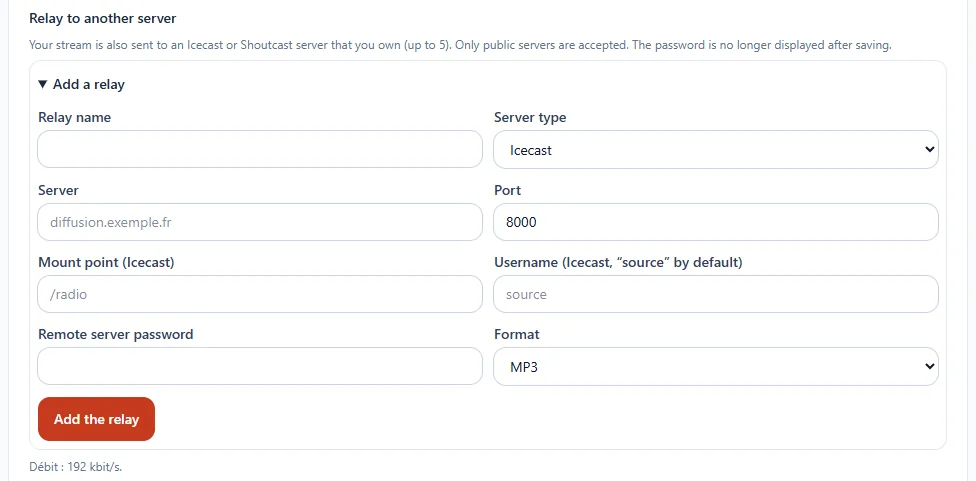
My radio in the sidebar, then Relay to another server on the service's page.
Step by step
- Open Add a relay.
- Give the relay a name and choose the server type (Icecast or Shoutcast).
- Enter the server, the port and, for Icecast, the mount point and the login ("source" by default).
- Enter the remote server's password and choose the format: MP3, or AAC for an Icecast server.
- Click Add the relay.
The panel then shows the status of each relay: connected, connecting or failed, with the reason. In case of failure, you can ask for a new attempt.
Good to know
- 5 relays at most.
- Only public servers are accepted.
- The password is no longer displayed after saving.
- To edit a relay, delete it then recreate it.
- Adding or removing a relay cuts your broadcast for a few seconds.