Push notifications
A notification appears directly on your listeners' phones, even with the app closed: ideal to announce a live show or a contest.
Where to find it
In the manager, open Notifications.
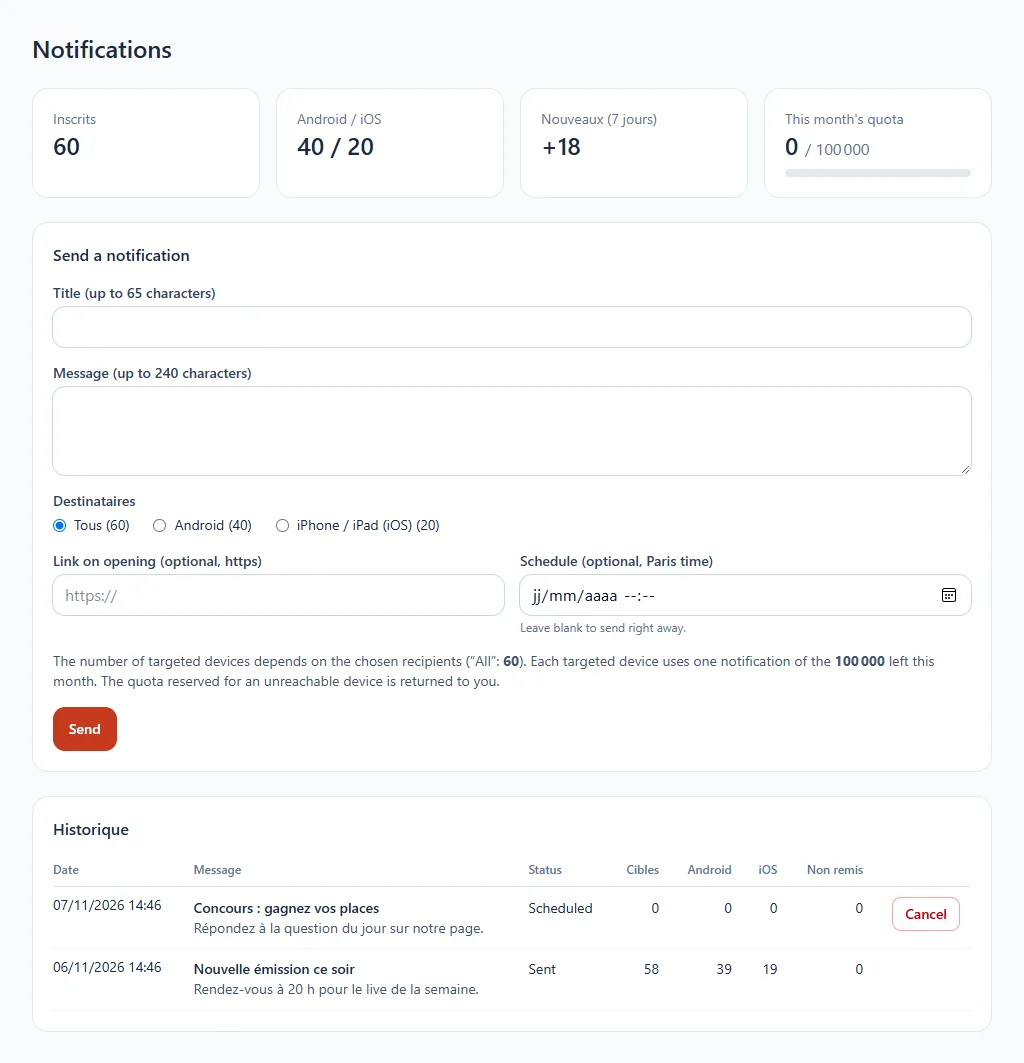
Send a notification
- Enter the title (65 characters at most) and the message (240 characters at most).
- Choose the recipients: everyone, Android only, or iPhone and iPad only.
- If you wish, add a link on opening (
httpsaddress). - To send it later, fill in Schedule (Paris time); leave empty to send right away.
- Click Send.
Follow the effect
At the top of the page: the number of subscribers, their Android and iPhone split, the new subscribers of the last 7 days and your monthly quota. The history lists each send with its status (sent, scheduled), the number of devices targeted and of messages delivered.
A scheduled notification can be cancelled as long as it has not gone out.
Your quota
Each device targeted uses a notification from your monthly quota. When a device is unreachable, the reserved notification is returned to you.