Adjust the start and end of a track
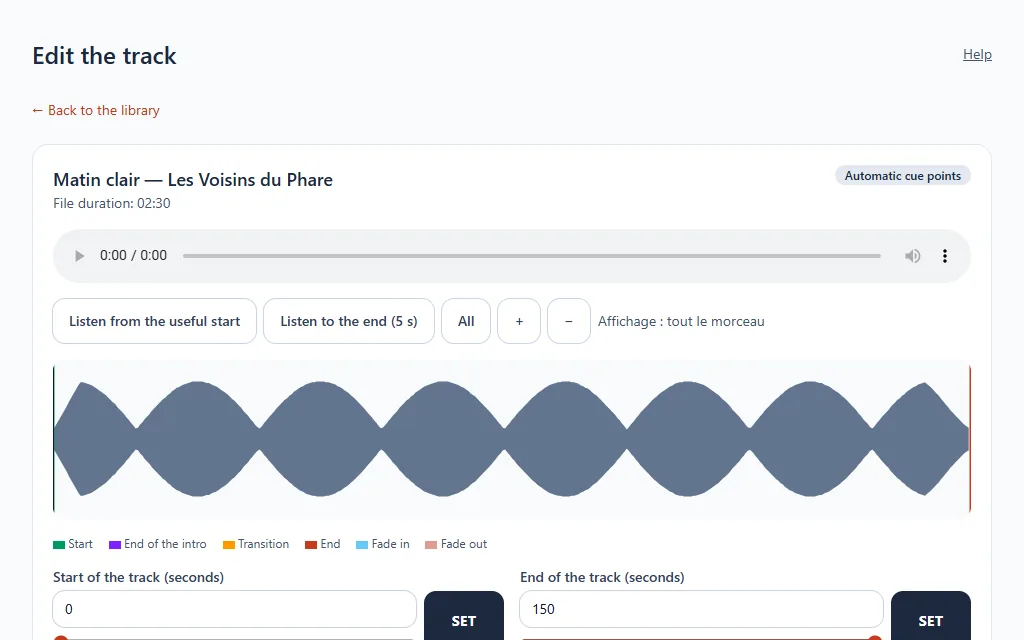
A track starts with a blank, or ends too late? Adjust it by ear: the editor displays the waveform and lets you choose where the track starts, where it stops and how it blends into the next.
What it is for
- Cut a silence at the start or end.
- Add a fade-in or fade-out.
- Listen to the result before validating.
Your file is never modified: only the markers are saved.
Where to find it
In the library, click Markers and fades to the right of the track.
Step by step
- Start playback with the player, or use Listen from the useful start and Listen to the end (5 s).
- Zoom on the waveform with +, − and All.
- Set the four fields: Track start, Track end, Fade-in and Fade-out (in seconds). The SET button puts the current playback position into the field.
- Click Save.
Useful settings
- Fades are 0 by default: no fade until you set one.
- Both fades must fit in the part of the track between the start and the end.
- Go back to automatic calculation cancels your markers and hands control back to automatic detection.
- To automatically remove silences from all your tracks, see Remove silences at the start and end.