The store listing
The store listing is your app's presentation page on the App Store and on Google Play: its name, its description, its keywords. It is what people read before installing it. From your manager, you can write it, proofread it then send it to both stores.
Where to find it
In your app's manager, open Store listing. Two tabs: App Store and Google Play. Each store has its own text, with its own limits.
Only the account owner can edit the listing.
Write your listing
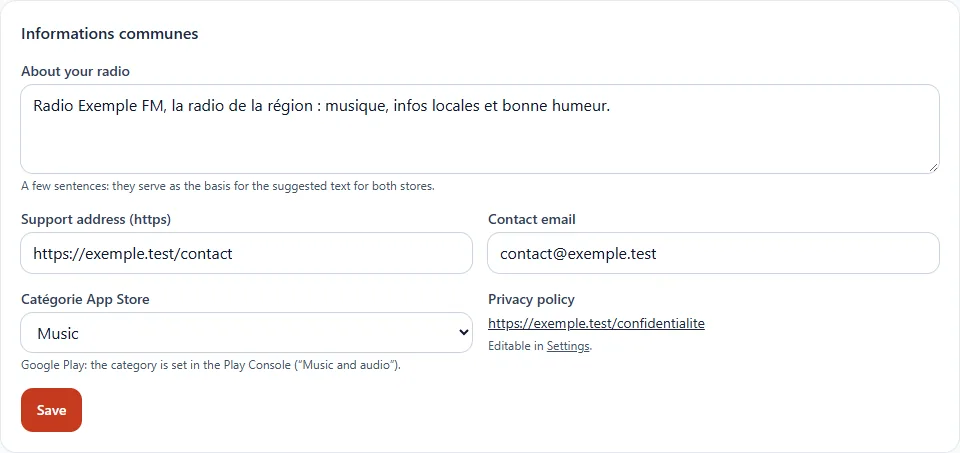
- At the top of the page, fill in the common information: a short presentation of your radio, a support address, a contact email and the app's category.
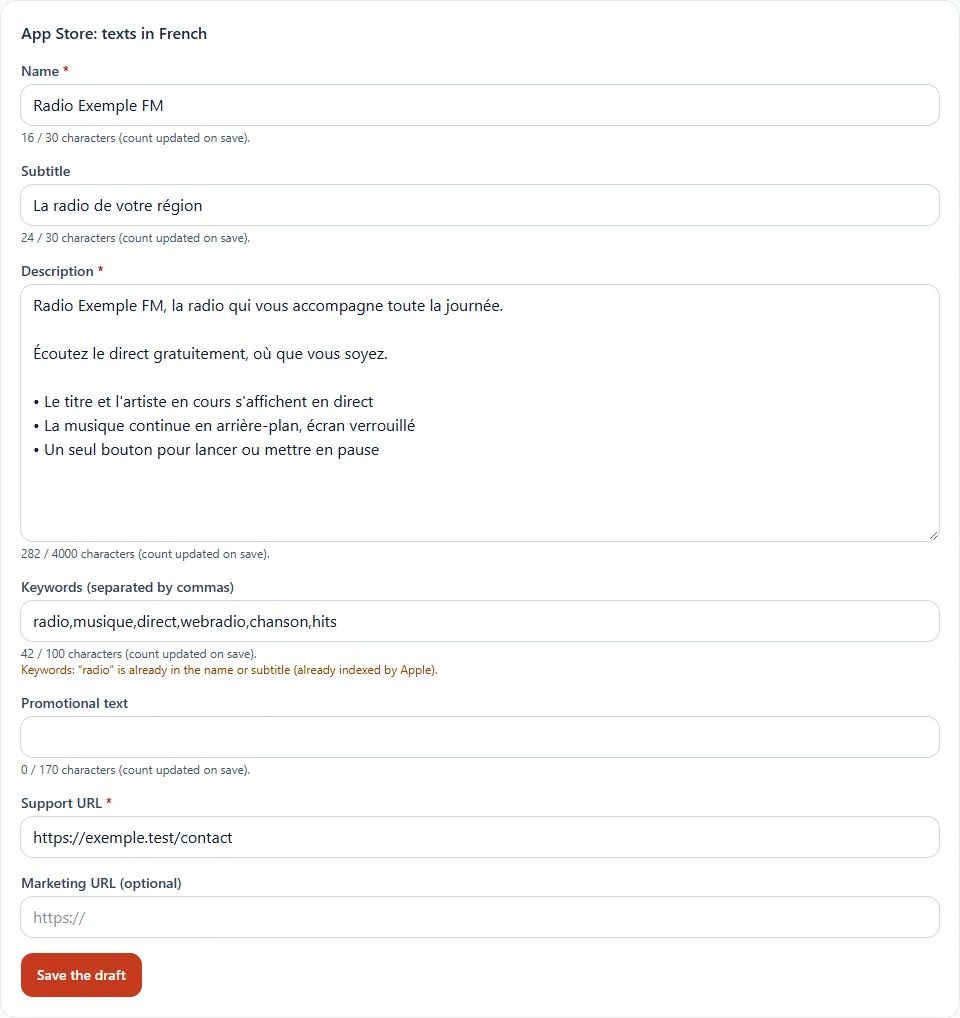
- Open a tab. Each field shows a character counter: respect the limit shown.
- Need a starting point? Click Suggest a text from my radio. The text that appears is only a base to proofread and edit: it is never sent on its own.
- Click Save the draft. Nothing is sent to the store yet.
The limits vary by store (for example 30 characters for the name). The panel checks your texts before any sending and explains what to correct: text too long, address without https, forbidden emoji, duplicate keyword.
Read what is already at the store
Your app may already be online, with a filled-in listing. Click Read the store listing: the panel retrieves the current texts and displays them next to your draft, field by field.
- Nothing is overwritten without your choice: you tick the fields to send.
- Take the store's texts into the empty fields fills your still-empty fields with what already exists.
Send the listing
Once the reading is done, scroll down to the Send to your store section. It lists the fields that differ from the store: tick those you want to send, then click Send the ticked fields. If nothing differs, the panel tells you that your draft is identical to the store's listing: nothing to send.
The result is displayed under the listing. If sending fails, the message says what to do: missing right, service unreachable, limit exceeded.
At Apple, an editable version is needed
Apple only accepts new texts on a version of the app that is in preparation. If the panel shows "No editable version", first create a new version in App Store Connect, then try again.
What remains to be done by hand
Some declarations cannot be made from the panel: data privacy, age or content rating, advertising, price and countries of distribution. A Left to do by hand box lists them, with a link to the right console. Tick each line when it is done: the panel never considers it done for you.
If your listing does not exist yet
No store lets you create the empty listing from an outside tool. Click Check that the listing exists: the panel tells you what to create in the console, with your app's identifier, and sends you to the page concerned.
Good to know
- Publication by PROMOMÉDIA: if we publish your app with our accounts, you keep control of the listing's texts, in the same way.
- Privacy policy: the address sent is the one in your app's Settings. If we publish for you and you have none, PROMOMÉDIA's is used.
- One language for now: the texts are in French.
To publish a new version of the app itself, see Publish a new version.