Your service's page
Everything concerning your live radio is on a single page: the address to give your listeners, the settings to broadcast with your software, the music library and the relays. It is the starting point for everything else.
What it is for
- Give your listeners your radio's listening address.
- Connect your broadcasting software to go live.
- Reach your library, the AutoDJ's programming and the voice tracks in one click.
- Follow your audience at a glance.
Where to find it
In the sidebar, under This radio, click My radio. You can also go through Services, then your radio.
Step by step
- At the top of the page, a banner tells you whether your radio is online, how many listeners are tuned in right now and the current song. The Listen to my radio button opens it in a new tab.
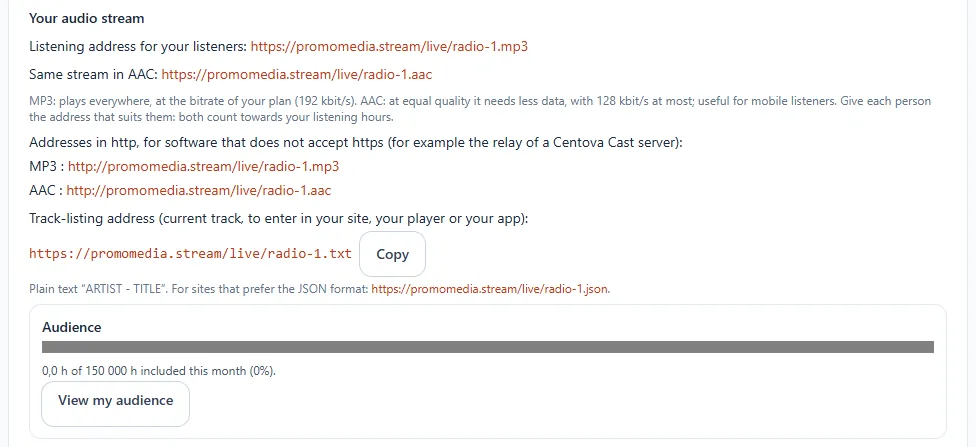
- In Your audio stream, copy the listening address: it is the one you give your listeners. The panel shows two addresses for the same stream: the MP3, played everywhere, and the AAC, which uses less data (128 kbit/s at most) and suits mobile listeners well. Give each one the one that suits them: both count in your listening hours. The same addresses in http are offered below for software that does not accept https (for example the relay of a Centova Cast server). Just below, the metadata address gives the current song (artist and title) as plain text, or as JSON for websites that prefer it: paste it into your website, your player or your app. The Copy button places it in the clipboard. If this address opens a blank page while your radio is online, no song is announced: with the AutoDJ, check that Include in metadata is ticked on your music playlists (see Playlists).
- Further down, Connecting your broadcasting software gathers the settings to enter in your software: see Broadcast live with your software.
- The Music library section gives access to three buttons: Manage my library, Program the AutoDJ and Voice tracks.

Useful settings
Who sees what?
All the members of your team see the listening address. The encoder settings (including the password) and the advanced settings are reserved for the account manager.