Customise your website's look
Change your website's colours, fonts and rounded corners while seeing the result, without publishing anything until you decide to.
Where to find it
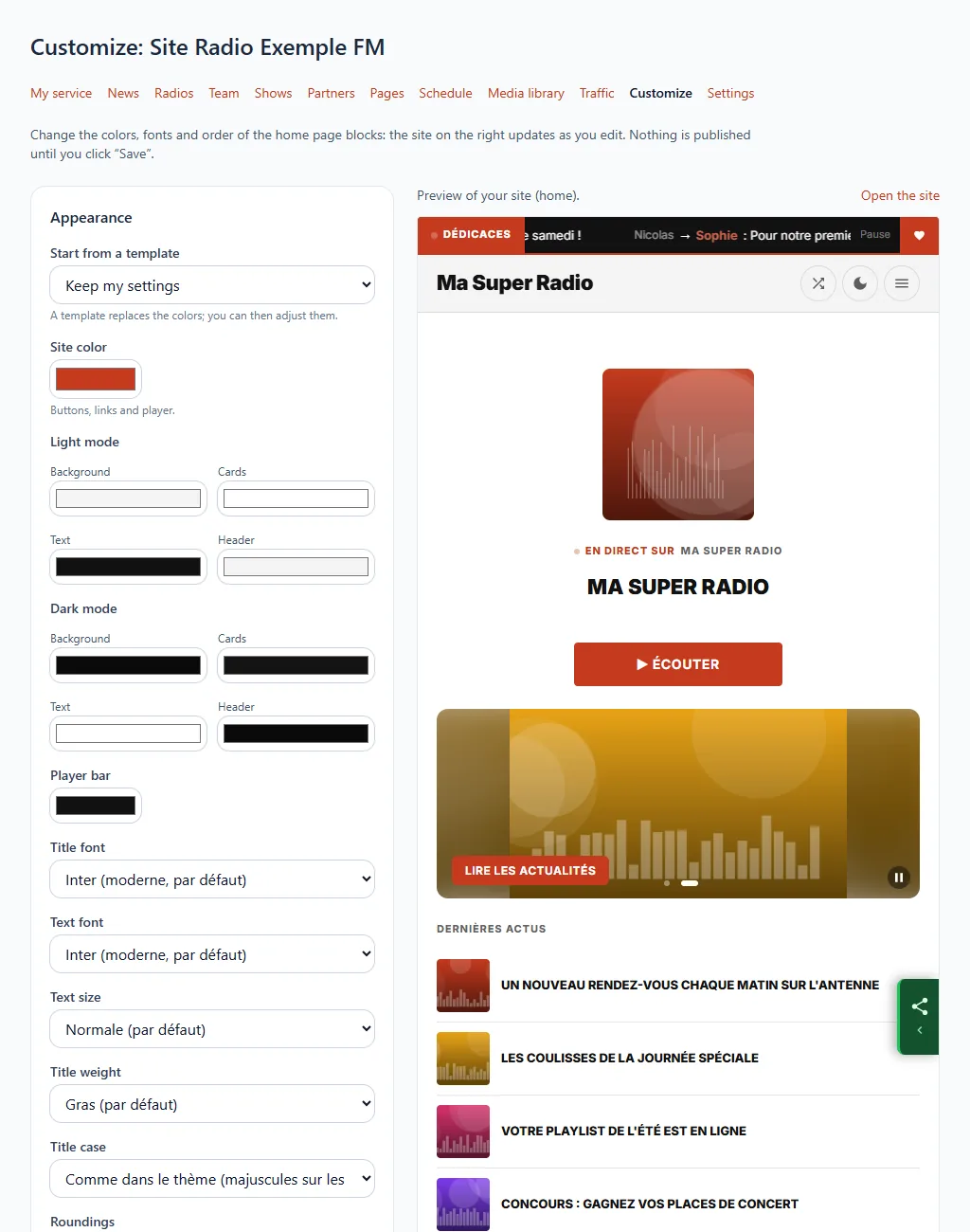
Customise section of your website's menu. The form is on the left, your website on the right: it updates as you edit.
Step by step
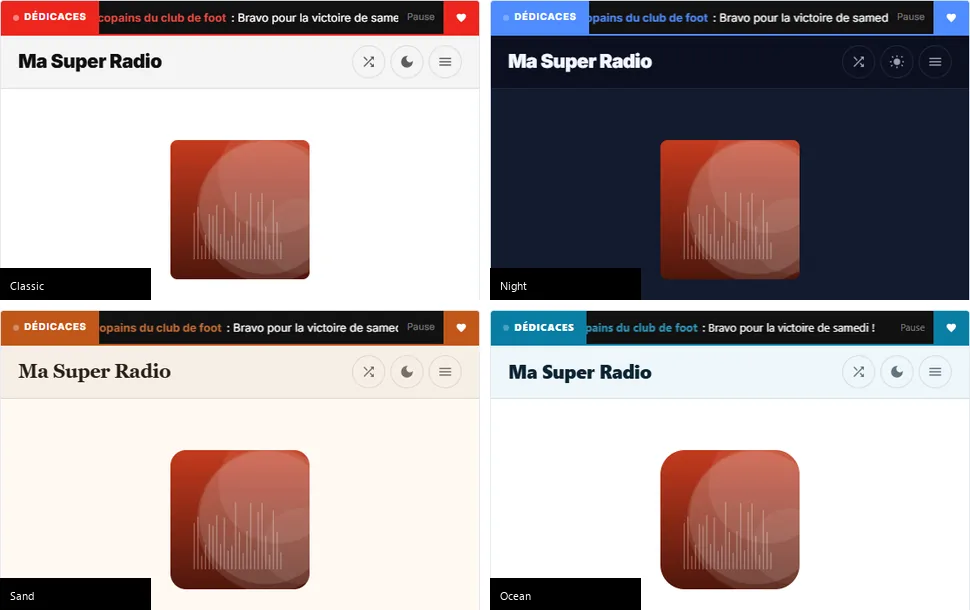
- If you want to start from scratch, choose a template (Classic, Electric Night, Warm Sand or Ocean). The form's colours and fonts fill in.
- Adjust what you want: site colour, light and dark mode colours, player bar, fonts, heading size, weight and case, rounded corners, default display (light, dark or according to the device).
- Look at the preview on the right. It is only visible to you.
- Click Save to publish, or Cancel changes to go back to the saved state.
Colours must stay readable
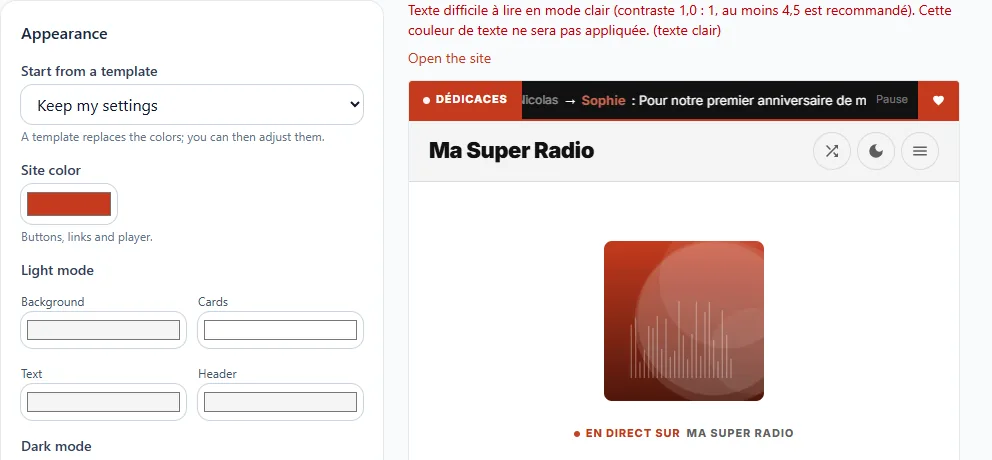
If a text has too little contrast with its background, your website refuses it and says so above the preview: the colour is not applied. Choose a darker or lighter colour.
Go back to the original look
The Go back to the original look link, at the bottom of the page, resets the colours, fonts and home page layout to their starting state. Your website's name, logo and other settings do not change.
Good to know
The preview shows the home page. The colours and fonts then apply to the whole website.