Voice tracks
A voice track is an announcement recorded in advance ("You are listening to Radio Example FM") that plays between two tracks. The music ducks while you speak, then comes back up.
What it is for
Giving your radio the feel of a human presence, even on AutoDJ.
Where to find it
From your radio's page (My radio), click Voice tracks.
Step by step
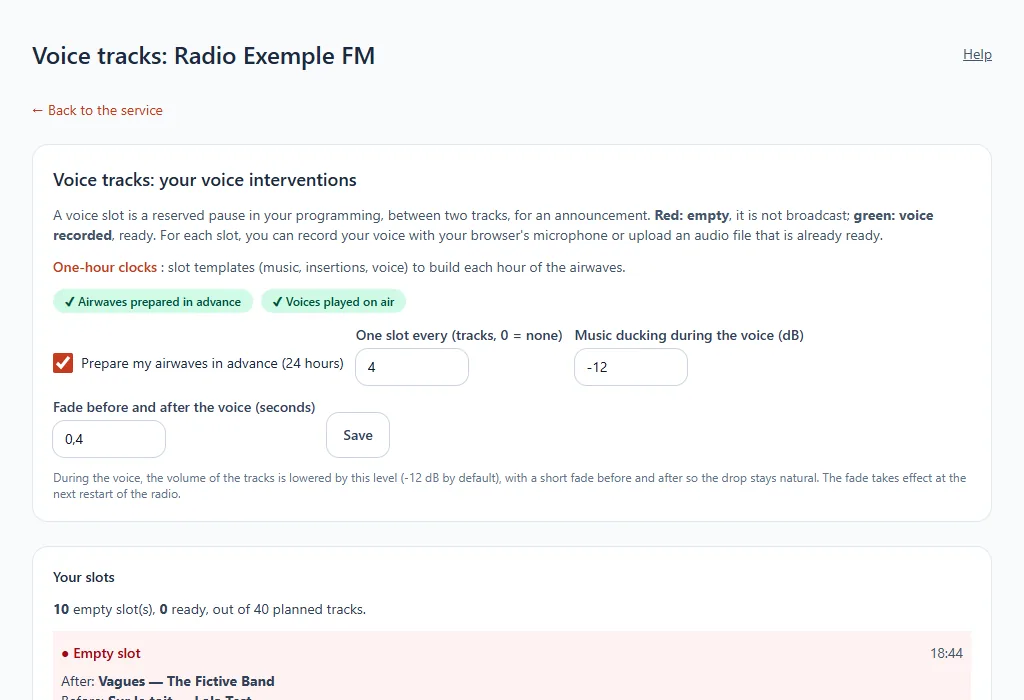
- Tick Prepare my station in advance (24 hours): the station is decided in advance, which makes it possible to place your voices in the right spot.
- Choose one slot every N tracks (0 = none), or add slots by hand after a track in the list.
- Set the music ducking during the voice (−12 dB by default) and the fade before and after.
- For each slot, click Record the voice.
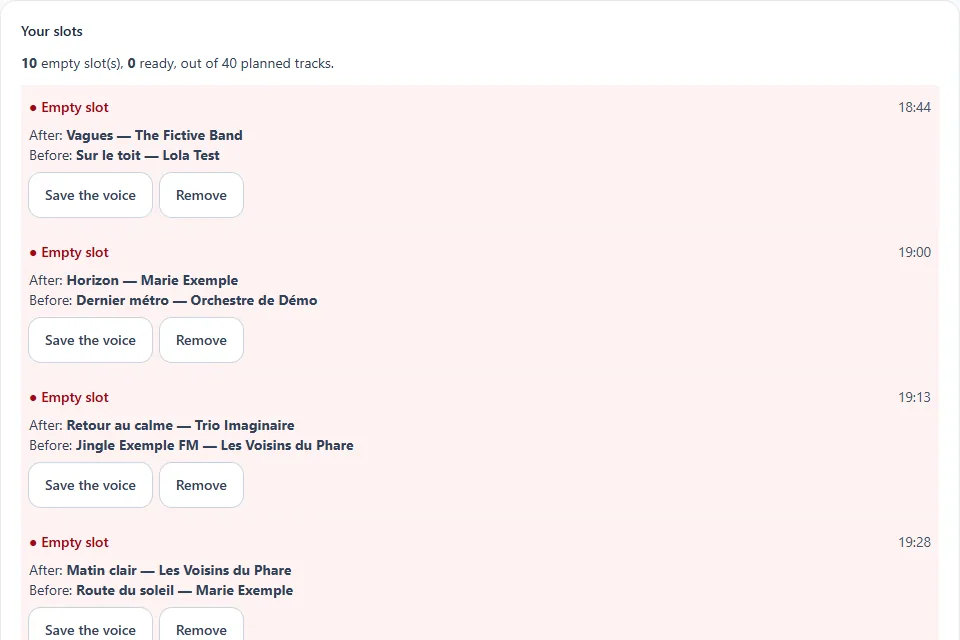
A red slot is empty, a green slot contains a ready voice. For each, you see the preceding and the following track.
The voice placement window
Click Record the voice (or a slot) to open the slot's window. It shows three superimposed tracks, aligned on the end of the previous track, and a fourth for the music level.
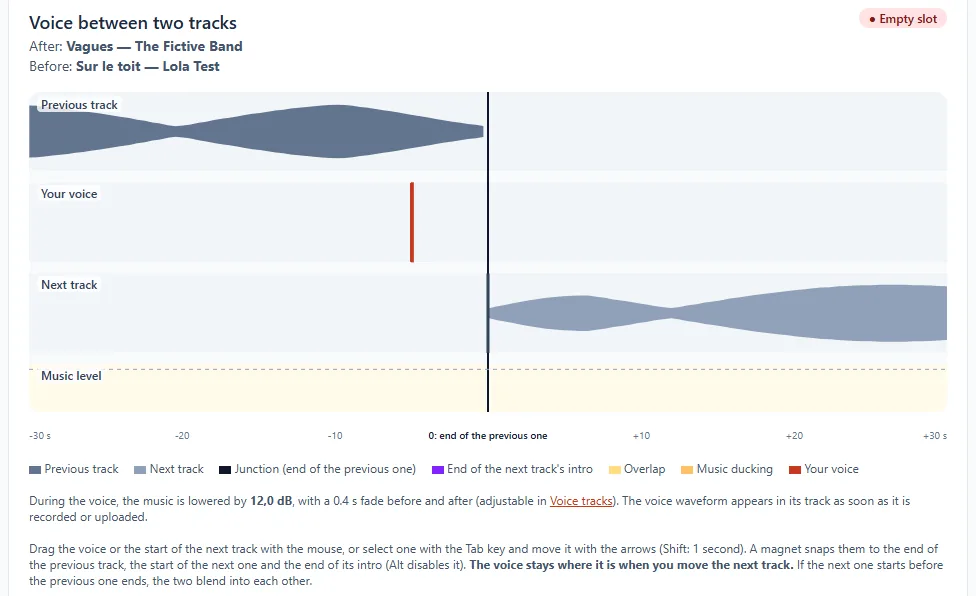
- Previous track: its last 30 seconds, up to the vertical line that marks its end (the "junction").
- Your voice: its waveform appears as soon as it is recorded or uploaded. While the slot is empty, a red marker shows where it will start.
- Next track: its start, just after the junction.
- Music level: it drops during your voice, by the number of decibels set in the Voice tracks page.
The graduated ruler at the bottom runs from −30 s to +30 s around the junction (0 = end of the previous track).
Place the voice
- With the mouse: drag the voice marker to the desired spot.
- With the keyboard: select it with the Tab key, then move it with the arrows (Shift to move by one second).
- By value: in the field "Voice start relative to the end of the previous track", enter for example −5 to start 5 seconds before the end, 0 to start at the junction, 2 to start 2 seconds after.
- A magnet snaps the voice to nearby markers (end of the previous, start of the next). Hold Alt to disable it.
Click Save the placement to confirm.
Record the voice
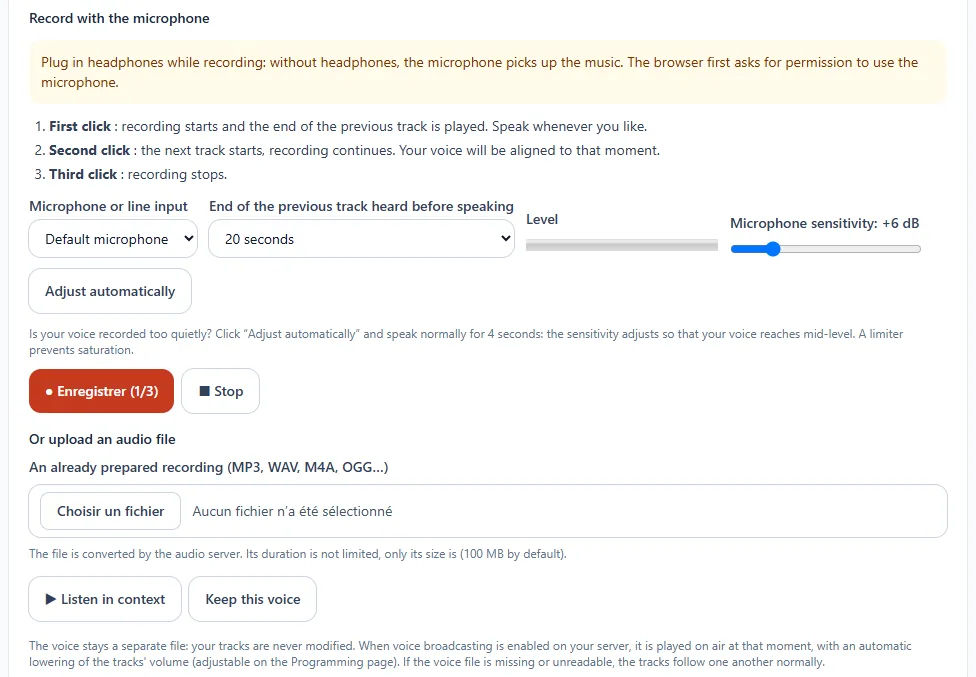
- Plug in headphones: without headphones, the microphone picks up the music. The browser asks your permission to use the microphone.
- Choose the microphone and the length of the end of the previous track heard before speaking.
- Set the microphone sensitivity: click Adjust automatically and speak normally for 4 seconds. The level rises to mid-height of the level meter (the slider lets you adjust, from 0 to +30 dB). The setting is kept from one time to the next.
- First click on Record: recording starts and the end of the previous track plays. Speak when you want.
- Second click: the next track starts, recording continues. Your voice will be aligned to this moment.
- Third click: recording stops.
Prefer an already prepared recording? Use Choose a file (MP3, WAV, M4A, OGG…). The file is converted for broadcast; only its size is limited.
Click Listen in context to hear your voice again between the two tracks, then Keep this voice. Your tracks are never modified: the voice remains a separate file.
Good to know
- The voice only plays on the AutoDJ: a live broadcast always has priority.
- A voice recorded too late for the current track moves to the next slot.